How to save ChatGPT prompts on iPhone
To save ChatGPT prompts on iPhone, use one of three methods depending on how many prompts you keep. For a few, copy the prompt from the ChatGPT app and paste it into Apple Notes with a clear title — fast, free, and already on your phone. For a full backup, use ChatGPT's built-in export (Settings › Data Controls › Export Data); OpenAI emails you a downloadable archive of your entire history, but it isn't searchable prompt-by-prompt. For prompts you reuse, a dedicated prompt manager saves each one as a titled, searchable, templated entry you can refill and paste back in seconds. ChatGPT itself has no built-in way to save individual prompts — it only keeps whole conversations — so all three methods work around that gap. Notes suits a handful, export is for archiving, and a prompt manager wins once you reuse more than a dozen.
Can you save prompts directly in ChatGPT?
No — ChatGPT has no built-in feature to save or organize individual prompts. It automatically stores whole conversations in your chat history, each listed under a title the AI guessed rather than one you chose, so the only saved copy of a prompt is buried inside the thread where you first typed it. You can't name a single prompt, tag it, or pull it out on its own; finding it again means scrolling your history or searching from memory. That gap is exactly why the three methods below exist — each one is a way to keep a prompt as a prompt, separate from the conversation it came from.
How do you save a ChatGPT prompt to Apple Notes on iPhone?
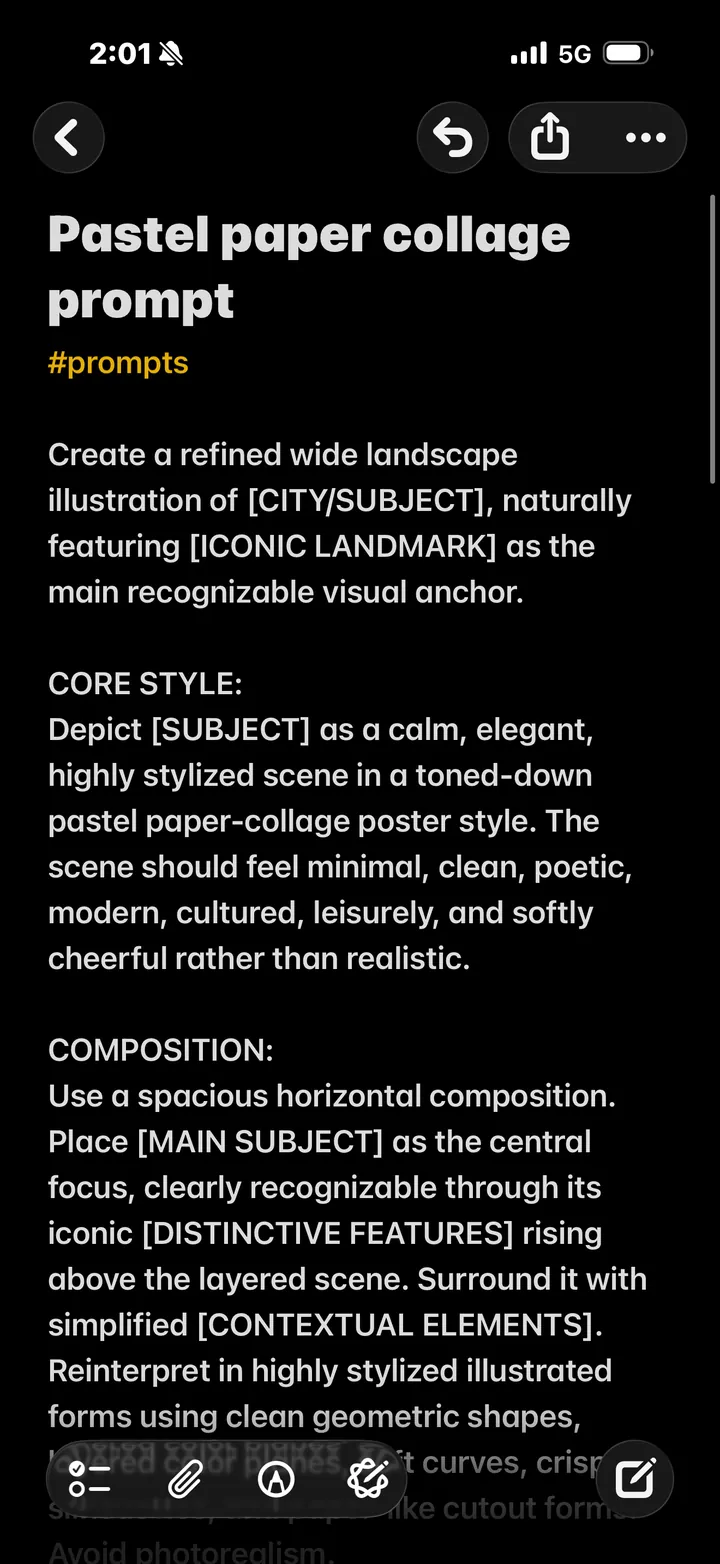
Copy the prompt from the ChatGPT app and paste it into Apple Notes — about three taps. In the
ChatGPT app, press and hold your prompt message and tap Copy. Open
Notes, create a new note, and paste. Then give the note a clear title and, if
you want it findable later, add a hashtag like #prompts so Notes search surfaces it.
It's a three-step, zero-cost workflow that works offline once saved. The trade-off: Notes has no
prompt-specific fields and no variables, so a single notes folder gets unwieldy past a couple of
dozen prompts. Once your library grows, a real structure beats one long note — see
how to organize AI prompts.
How do you export your ChatGPT history on iPhone?
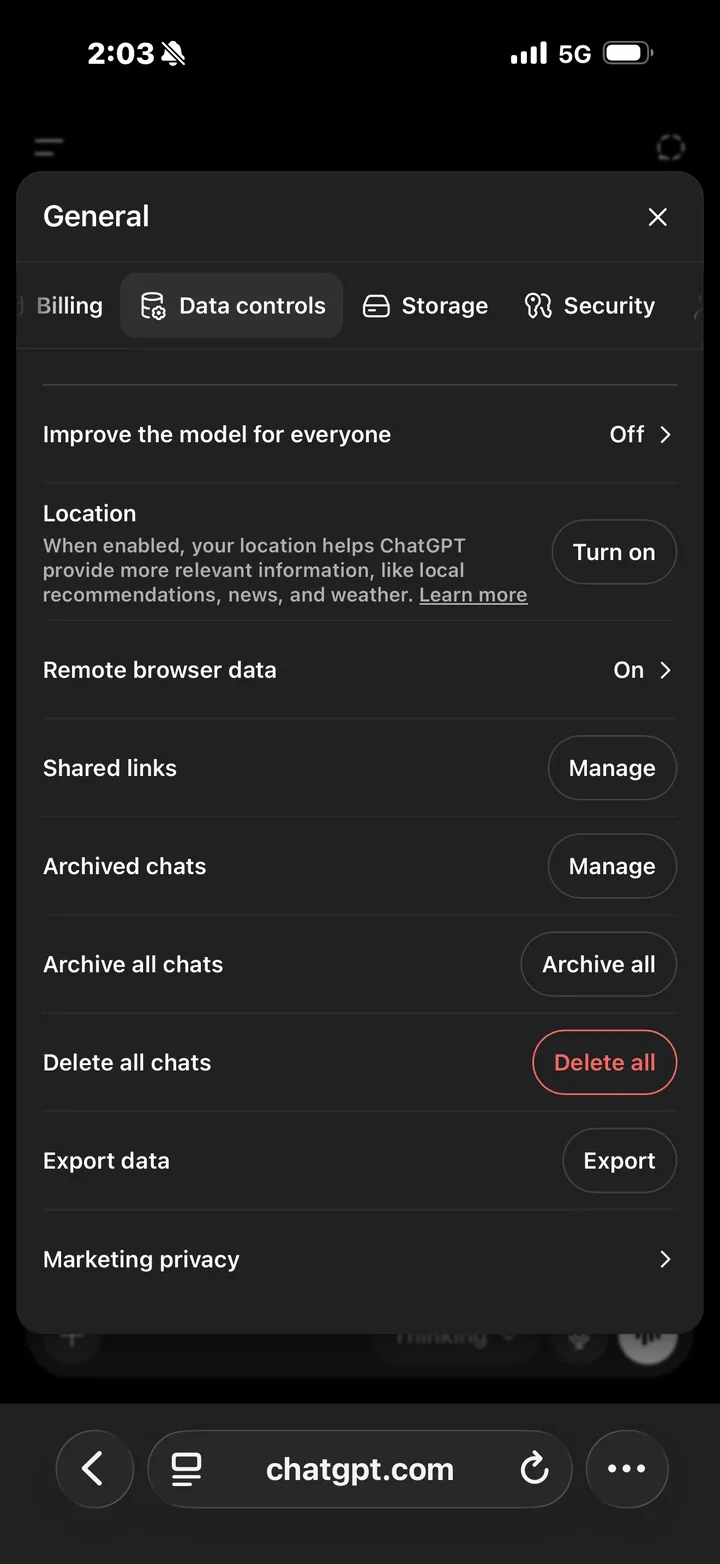
Use ChatGPT's built-in export: open the app, tap your profile, then go to
Settings › Data Controls › Export Data and confirm. OpenAI emails
you a download link that expires after 24 hours; the export can take up to 7
days but usually arrives within minutes. What you get is a ZIP archive containing
conversations.json and a browser-readable chat.html — your entire
history, not individual prompts, and not searchable prompt-by-prompt. That makes export the right
tool for a full backup or for leaving ChatGPT, but a poor fit for day-to-day reuse, since pulling
one prompt back out means digging through the whole file.
How do you save and reuse a prompt with a prompt manager?
A prompt manager saves each prompt as its own titled, searchable entry you can reuse in seconds —
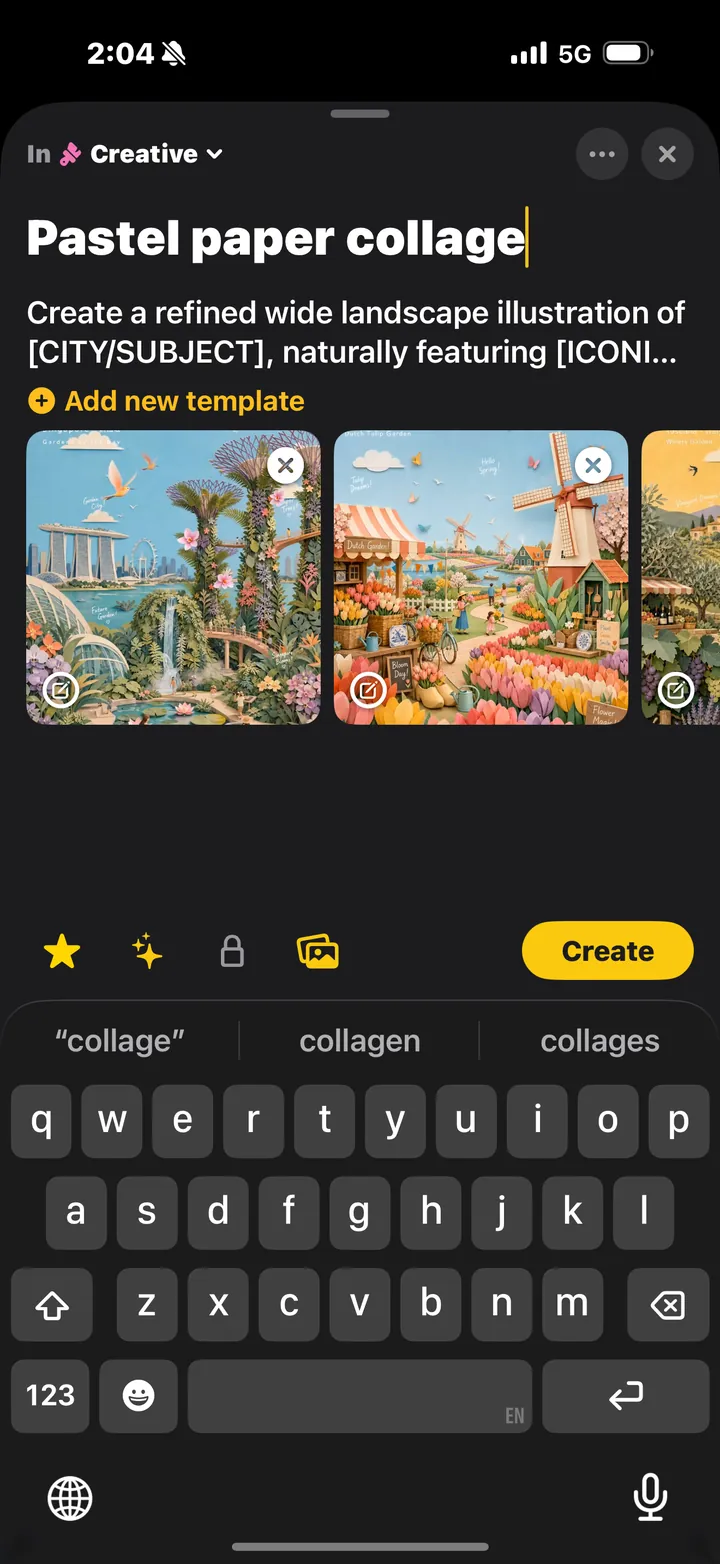
the only one of the three methods actually built for reuse. In Promptler on iPhone or iPad, tap
+, paste your prompt, add a category and a label or two, and save; to reuse it,
open the prompt, fill in any {{variables}} you defined, and paste the finished text
into ChatGPT, Claude, Gemini, or any other AI tool. Everything stays on your device, works
offline, and the free tier holds 15 prompts with no account required. Unlike Notes you get
prompt-specific fields and variable templates; unlike export you get individual, reusable prompts
instead of one giant archive. If you find yourself retyping the same prompt with small changes,
learn how to turn it into a reusable template with
variables.
Which method should you use to save ChatGPT prompts?
Match the method to how many prompts you keep and whether you reuse them:
- A handful you rarely change → Apple Notes. It's already on your phone and takes three taps.
- A one-time backup or account migration → ChatGPT's export. You get the whole history in one archive.
- More than a dozen prompts you reuse → a dedicated prompt manager, for search, categories, and variable templates.
In practice the dividing line is reuse: if you've retyped the same prompt from memory more than twice, the few seconds a manager saves each time quickly outweigh the setup. Many people use two together — Notes or export for the long tail, a prompt manager for the prompts they lean on every week.
Save your first 15 prompts free
Promptler is the private, on-device prompt workspace for iPhone and iPad. No account, JSON export anytime — start free with 15 slots for the ChatGPT prompts you actually reuse.
Get Promptler on the App StoreFAQ
Does ChatGPT save your prompts automatically?
ChatGPT saves whole conversations to your chat history automatically, but not individual prompts you can name, tag, or reuse. Your prompt only exists inside the thread where you typed it, listed under an AI-guessed conversation title — so to keep a prompt on its own you have to save it yourself with one of the methods above.
Where are ChatGPT prompts stored?
Your prompts live inside your conversation history on OpenAI's servers, and a copy is included in any data export you request. They are not stored as separate, searchable prompts anywhere unless you save them yourself to Apple Notes, an export archive, or a dedicated prompt manager.